
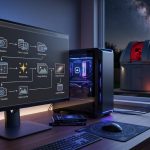
I get frequent emails with questions about how I remotely control the observatory and the equipment within. The questions range from what software is used to what the desktop looks like. So I put together this page in attempt to show what process I go though for a remote observing session. I have successfully operated the observatory from the comfort of my family room to hotel rooms on the other side of the country. Remote operation can be done reliably and safely, but it does require some planning and preparation. Before you begin read this Disclaimer. I would also encourage anyone who is serious thinking about building a permanent completely remote controlled system to also take a look at this presentation on Observatory Automation. The hardware and software setup described below is based on a Windows operating system.
Connection to the Remote System
The first thing is the connection between the observatory and remote
controlling location. I like and use a wired Ethernet connection.
The reasons I like a wired connect are; it is the more secure than a wireless
connection, it is faster than a wireless connection and it is less susceptible
it outside interference (i.e. stray radio frequencies) than a wireless
connection. The configuration uses the observatory PC's IP address or
name to make a connection to the local controlling computer.
Depending on
the operating system of your observatory PC you have a number of options for
controlling the system remotely. For observatory computers running Windows XP
Pro I would recommend using Microsoft's Remote Desktop. I have found it to be
the fastest, offering the most seamless control and it supports files
transfers between the remote and local PC. There however has been some
reported operational issues with CCDSoft and Microsoft's Remote Desktop.
For Remote
Desktop to work the PC at the telescope (known as the server) must be
running Windows XP Pro or Windows Media Center Edition.
(Windows Vista Business,
Ultimate, and Enterprise editions use a feature known as Terminal Services
which is what Remote Desktop was called in Windows 2000). The client PC
(the one you are physically at) can be using Windows 95, Windows 98 Windows
98SE, Windows ME, Windows NT 4.0, Windows 2000, XP Home, XP Pro, Media Center
or even a Mac. The client can be downloaded from
Microsoft. There is also a web based version of the Remote Desktop
client available on Microsoft's site. If your telescope PC is not running
XP-Pro you will have to use a 3rd party program like
Real VNC,
Tight VNC,
PC-Anywhere or
Log-Me-In. There various versions of VNC and Log-Me-In that run on
most platforms including PDAs. VNC is no longer used on the observatory's
network. It has been replaced with Log-Me-In. Log-Me-In has better
performance on the observatory's network. It is also easier to use when
the system is operated remotely over the Ethernet. The architecture of the
Log-Me-In client / server configuration allows the client to easily locate the
server without the user having to know the server's IP address. I use this
method frequently even locally. I suggest also note that PC-Anywhere 12.1 was
tested and I wasn't at all impressed with its performace.
|
◄ The PC that resides in the observatory is connected to a Multi-port Ethernet switch on the network. The observatory PC is populated with all the software needed to actually control the mount and cameras. It also contains some other specialty software. Of course the observatory is also populated with the equipment needed to perform remote operations.
|
Mount Control
For the mount control I use TheSky6. For my mount (a Software Bisque Paramount
ME) TheSky is a requirement since the mount can't be computer controlled
without using TheSky. But even before the Paramount was purchased to replace
the observatory's original LX200GPS, TheSky was my telescope control program
of choice. Why? But it works. Not only does it work, it works well and has
lots of features.
| <package> <job id = "Telesecope.Connect"> <script language="VBScript" src="RCDK.wsf"> Option Explicit Sub Main On Error Resume Next TheSky6ConnectTelescope LastErrorCheck End Sub Main </script> </job> </package> |
One of the features I like best about TheSky is its ability to be scripted. The user can write, use or modify the simple supplied scripts to automate a number of operations.
◄ For example the "Telescope.Connect.wsf"
script on the left resides on the hard drive as a text file. It can be
edited with a simple text editor like Windows Notepad. It does not
need to be complied. It is executed just by clicking on the file name the
same way you would start any other program. |
|
When the "Telescope.Connect.wsf" file is executed it will automatically start TheSky6 and connect to the telescope previously defined. It will also display the last saved Sky screen. Other text scripts with a ".vbs" (Visual Basic Script) file type can be used the same way. They are also text files and don't need to be complied. An example is a script named "MoonTrack.vbs". It will start TheSky, connect to the scope or mount, slew to the moon and begin tracking without any other operator intervention other than clicking on the file. The only requirement is if your mount is not a Paramount it should be aligned before connecting to TheSky6. ► When operating a remote controlled system insure the mount will not make contact or be obstructed by any objects in the observatory or the location where the scope is set up. |
Camera Control
Without a camera connected to the telescope remote control is pointless. That
means the camera must be capable of being operated remotely as well as the
telescope. As a minimum the camera's exposure time needs to be capable of
being remote controlled. Each camera usually has it's own control
software. If so controlling the camera remotely shouldn't be an issue with the
use of one of the remote PC control programs covered above.
| Option Explicit Sub CenterIt Dim Cam Dim i Dim e Set Cam = CreateObject("CCDSoft.Camera") e=Cam.ExposureTime Cam.ExposureTime=1.0 for i=1 to 4 Cam.TakeImage Cam.CenterBrightestObject Next Cam.TakeImage End Sub CenterIt |
The main camera control program I use is CCDSoft. The reason for this is 2 of the main cameras used at the observatory are an SBIG ST-402ME and a ST-2000XM both of them can be controlled with CCDSoft. CCDSoft also integrates seamlessly with TheSky, and like the TheSky it is easily scriptable.
◄ Just as with the script for
TheSky6 the script below is in text format and can be executed by clicking
on the file name. This script will set the exposure time for the main
imager to 1 second. It will then take an exposure and attempt to
center the brightest object in the CCD chip. It will do this 4 times to
insure the target is well centered. |
The cameras used at the observatory have the capability of 100% control via computer control except for the Mallincam Hyper Color CCD video camera. It currently has about 90% remote control ability. The 2 features currently missing on my version are the Thermal Electric Cooling and the Hyper integration setting of 7 and 14 seconds. The good news is there is a fix in the works for that. The biggest problem with the video camera was there are 2 of them. The other one is a Black & White GSTAR-EX. The reason it was a problem is the control software use to adjust the setting for the video cameras require them to be connected to COM port 1. To remedy this problem a 20 port serial switch was installed. The switch allows multiple devices to switched to the COM port 1. In the case of the video camera the settings can be adjusted on one camera and then that camera disconnected from the port and the second camera switched in. More info about the use of video cameras will be covered later.
Weather Monitoring
While the system is capable of automated unattended operation I do monitor
"things" during the session (at least while I am awake anyway). What things I
monitor during the session depends on what time of day I am going to be
observing, and what type of observing session I am going to do. But
there is one thing I always do before I start...and that is to check the
weather. I have a weather
page setup on my website that gives me all the weather info I need. Some
of the data is from outside sources like
AccuWeather, the Weather
Underground and the US Weather service.
But some of the info is from equipment located at the observatory. There is no
substitute for knowing the true
local conditions,
the last thing you want is a weather surprise, especially if your are
operating remotely (distance).
If I am planning a session a few days in advance I'll take a look at my Clear Sky Clock. It gives a very good indication of what the conditions are going to be like over the next 2 days or so at the observatory. The Clear Sky Clock is a wonderful resource. The CSC is correct more often than it is wrong. ▼

![]() |
◄ The observatory also has a Cloud and
Rain Sensor. The sensor also gets a look before the dome is opened. There
is no point in opening the dome if the sky is cloudy and of course it
would be hazardous to the equipment to open the dome if it were raining. The cloud sensor is connected to the dome's shutters via a wireless link. If it is raining or very cloudy the shutters can't be opened remotely. This system safeguard however can be overridden locally from either inside the observatory or inside the house but for obvious reasons it is not done very often. There is also a full featured weather station installed at the observatory. The station monitors wind speed, temperature and humidity. There is also a lightening detector at the observatory. |
Observatory
Start Up
Once I am all sure the weather will cooperate and it is safe to open the dome.
I login to the observatory computer from the remote location. There are a
number of methods I can use to do this. Mostly the free service
Log-Me-In is used. So far it has
proven to be quick and reliable, and the fact that it is free is an added
plus. I could also use Microsoft's
Remote Desktop or one of the many variants of
VNC. The key here is to
have a backup. Since my home system is connected to the world via DSL
with a dynamic IP address that also means having a backup way to locate the
observatory's IP address. I use a couple of different methods but
DynDNS updater is a
program that will email you whenever your gateway's IP address changes. You
can also use either free or paid IP locator services to help you find your
system on the world wide web.
|
After the
"Observatory Start-Up" button is
selected both the upper and lower shutters automatically open and
the Paramount ME is homed, the ACP GUI automatically starts. When the
telescope is connected the Sirius Dome is homed. It is then linked and
slaved to telescope control software. The software used to control the
telescope is TheSky6
by the Software Bisque. TheSky6 is used to control the
Paramount ME a
German Equatorial Mount (GEM) that the
telescopes are mounted to. ► The dome and scope can also be linked using the Sirius Dome control software shown below. When the "Connect" button is pressed the dome and mount are connected. Now the "Home" button can be selected. This homes the dome to a known position. The Sirius software is only used when the dome is control in the local mode. ▼
|
![]() |
If the observing session is during the day the remote controllable Weather Cam can be used to verify the dome's shutters have opened and are correctly homed. As seen in the image below when the dome is correctly homed the slit is positioned directly over the observatory door and facing true north. That position allows Polaris to be seen through the dome's open slit. The camera can be configured to stream real-time video or "grab" still images at user defined intervals. ▼
![]() |
When the telescope control program starts it will display the words "Not homed" next to the crosshairs that represent the scope's current position. If the system was properly shutdown the crosshairs will be where the scope was parked after its last use. ▼
![]() |
The scope will automatically begin the homing process that will take the scope to a location very near to Hour Angle 2.0 and Declination of 0.0. The homing process is complete when both the RA and Dec phase numbers equal 9. The whole startup procedure takes about 5 minutes. The homing procedure is very accurate and repeatable. (This is one of the features that makes the Paramount ME a great choice for a robotic telescope mount. It is also q feature that is lacking on most other mounts and why many of them are not suited for remote use. Without this feature, or without absolute encoders where the scope knows exactly where it is pointed at initial power up opens the door for problems. If the user accidentally syncs on the wrong star or the mount looses power the operator would have to begin execution of a star search. The search procedure usually means moving the telescope in a controlled spiral patterned until a known star or object is visible in the imaging camera's FOV. Most amateur scope mounts require the scope be manually aligned after a power failure, or if the scope is disturbed while parked, or the clutches are unlocked etc.) ▼
![]() |
After homing is complete the telescope is ready for use and can be slewed to any target above the horizon. In the display above the telescope has been slewed to the Sun in order to do some Solar observing (The telescopes are equipped with solar filters in order to prevent damage to them and the imaging cameras.) For a telescope to useful as a remote controlled or robotic telescope it's pointing must be very accurate. In order to get that accuracy the telescope's movement around the sky was mapped using a program called T-Point. During the mapping process T-Point records the difference in the telescope's commanded position with the actual position it went to in the sky. Things like flexure of the mounting rings, improper telescope balance or a host of other issues can affect the telescope's pointing accuracy. The delta between the commanded position and where the scope ended up during mapping is used to adjust the scope's final position after a slew. This allows it to point to where the operator intended it to. The more points that are accurately mapped the more accurate the telescope's pointing will be. It is not uncommon for a T-Point mapping model to have 100s points. The mapping model remains accurate unless the scope is moved or reconfigured. (Mapping runs done at the observatory are automated.) In addition to the the T-Point model helping with pointing accuracy it also helps the tracking accuracy. A program called ProTrack can use the T-Point mapping model to adjust the telescope position as it tracks a target across the sky. (Note: this is different than Autoguiding with a camera.) ▼
![]() |
The desktop's configuration can be setup to monitor whatever the operator feels is important to keep an eye on by arranging the open applications. In the example above the Weather Cam is being used to monitor the dome's position in relation to the Sun (upper left). The white light image of the Sun is displayed on the right. (The vertical dark band is a tree that was between the Sun and the telescope when the image was taken. A small Sun spot can be seen in the bottom of the photo.) The image on the lower left shows the telescope's current position as it tracks the Sun. The purple and red areas represent the limits before the mount will have to execute a meridian flip. ▼
![]() |
The example below is from a remote terminal that accessed the observatory computer via the internet using Remote Desktop. The image on the left is from the 4" refractor with a Baader while light solar film filter. (2 small spots can be seen (one on the lower right and a faint one toward the upper left.) The image at the right is from the hydrogen-Alpha Maxscope40 with a Meade LPI attached The image on the left is rotated 90 degrees (ccw) in relation to the image on the left.▼
![]() |
| ▼ In the example below the Moon is being tracked. On the left side the night vision camera output is being displayed in order to monitor the telescope's position within the observatory. This image is from the website feed that is set to update once every 3 minutes and displays the date and time the image of the scope was captured as well as the current time. The telescope can also be monitored by viewing the real-time video from this camera, that feed is not offered to the public. The real-time feed is normally only monitored during manual slews or satellite tracking. The display on the bottom center shows the Moon being tracked on the western side of the meridian. The mount has already executed a meridian flip which means the scope can continue tracking the target without any interruptions all the way to the horizon. The image at the top is the output from the video finder. This is a real-time video feed from a modified F50 finder scope that has a Mallincam Hyper Color CCD camera attached. The camera's composite video output is connected to a Slingbox video box which is connected to an Ethernet connection. This allows the video to be seen on almost any Mac or Windows computer that has access to the observatory's network, (this also includes compatible PDAs and cell phones.) The finderscope is aligned with the telescope's imaging cameras. The image in the video finder can also be zoomed in and out in order to match the field of view of the imaging camera. This allows the remote operator to not only use this camera to see where the scope is actually pointing, but to frame the target being imaged. The controls seen in the lower right are used to make adjustments to the scope position if needed. The text window above it shows the scope's current position in Right Ascension and Declination as well as Altitude and Azimuth. It also shows the dome's actual azimuth position along with where the computer commanded the dome to go based on the telescopes position. ▼ |
![]() |
▼ The screen capture below shows the view from the GStar-Ex video camera (left) that is used to monitor the position of the dome and the attitude of the mount from the telescope's point of view. Using this camera assures the remote operator the slit is not obstructing the telescopes. The 3 close stars in Orion's belt can be seen though the slit. The camera's focus is set so the dome's slit is in focus. This was a screen capture so the actual on screen image is much clearer. The 90 degree angle of the image is because the mount is a GEM and it is pointed west. The tube on top is the ST102A. The larger one below it is the dew shield on the 10" LX200GPS. If needed adjustments can be made to the slit's position by using the dome arrow keys on the custom observatory control interface.
The image on
the right is the display from TheSky6 showing the position of the
Constellation Orion. As you can see it is just West of the Meridian. If
you rotated it clockwise about 90 degrees it was match the image on the left.
Since the camera that captured the image on the left is attached to the
telescope it displays the image in the orientation the telescope sees the sky.
Between these two displays the remote operator knows the scope is pointed in
the general direction of the target. Where the scope is actually pointed is
depicted by the circle below the two stars in Orion's belt. In this case the
scope is point at M42 (The Great Orion Nebula).

▼ There
are actually 2 video cameras attached to the telescope mount.
Both these
cameras must be covered during solar observing or they will be damaged by the
Sun. More
info about the video cameras can be found
here. The 2nd camera
is a Mallincam Hyper Color CCD camera. It is connected to a Stellarvue F50
finder scope. This camera and telescope combination are used as a video finder. The image below
(right) shows a
view of M42 as seen from the Mallincam and the F50 finder. This helps
the remote user identify bright objects and star patterns as the finder scope
has a wide field or view. Below is the camera control GUI used to adjust
the camera's parameters, such as shutter speed, sensitivity, color, zoom etc.
This GUI is used from both the GStar-EX and Mallincam.

When the target is center in
the field of view of the electronic finder it will be within the field of view
of the CCD camera (left). The CCD image was taken using the 102mm
telescope. Once the target is within the field of view of the CCD camera
a quick test image is taken. The user can then center the object by placing
the cursor on it and right clicking it. They have the choice of centering the
cursor position or centering the brightest object on the CCD chip. There is
also a script that the user can run that will automatically center the
brightest object.

![]() |
◄ A PDA can be used to control the observatory if desired. The PDA can access the observatory either via Bluetooth or Wifi. That means a PDA is all that is needed to use the system from an internet cafe or a hotel room while on business travel. The display on the left side of the PDA screen is the CCDSoft program as it acquires an image of a deep space object. The display on the right side is of TheSky6 telescope control program. |
▼ There are other less interesting but equally important things within the observatory that can also be monitored remotely. The image below shows the status of the power system from the data logger. Channel 1 displays the voltage to the twin 100 amp hour batteries. Channel 2 monitors the voltage of the 120 watt solar panel at the test point on the solar charge regulator. Channel 3 is the solar panel voltage for the solar powered white and red 3 volt DC LED lights inside the observatory. Channel 4 is the unregulated voltage of the 10 amp DC power supply. This supply is mainly used to power the scopes' dew heaters and controller.
![]() |
▼ This image shows the data logger in analog mode. This mode is useful for monitoring the output of solar charge regulator. The charge regulator is the represented by the white sawtooth pattern. What this trace shows is the rate at which the solar charge regular to cycling on and off. In this case the rapid duty cycle indicates a full charged set of batteries. The image was taken during testing of the 3 volt DC LED lighting system. When the solar panel for the lights was covered the voltage output of the panel dropped off, (as expected). This drop off indicated to the lighting controller that it was dark outside. If the LED power switches were enabled the lights in the observatory would turn on. (Since the voltage output is directly related to the amount of sunlight on the panel, the 3 volt solar panel output is also useful for the remote user as it gives them a very good idea of just how dark it is at the observatory. The darker it get the lower the voltage becomes. In general cameras are much more sensitive than the human eye, so an image from a video or still camera does not provide adequate feedback to a remote user about how dark it really is at the observing site. This is especially important if the observer is trying to image a target early in the evening before the target disappears over the horizon.)
![]() |
▼ While the above volt meters work well for remotely monitoring the power supplies and batteries below the dome, monitoring the battery in the rotation section remotely presents an issue. Since it is not easy to have a physical connection to the rotation section of the dome and another wireless connect would consume more power the state of the battery is checked using the GStar video camera while the scope is parked. In the image below two voltmeters are visible with a 0 to 15 volt DC scale. The one on the left is for the small solar panel that is used to keep the battery charged. The picture was take during the daytime with partial clouds, but as you can see from the meter the solar panel is still producing more than 15 volts. The meter on the right is connected to the 3a battery that controls the upper and lower shutter. It also supplies power to the wireless receiver for the cloud and rain sensor. The receiver constantly draws power from the battery 24/7. The importance of having this battery fully charged is obvious. If the battery isn't charged the shutters can't be opened. Even worse is having enough power in the battery to open the shutters but not enough to close them at the end of the session or if it begins to rain. The image shows the battery has a full charge of about 12.5 volts. The interior light may need to be turned on to read the meter. Fortunately it can also be controlled remotely. The light can also be turned on as need to get a better view of the scope via the remote cameras.

The last but very important part of remote operation is to have a way to reboot the observatory computer. This is essential in case the computer hangs or becomes unresponsive. Don't rely on using a path via the PC to reboot itself. That means forget about using the Task Manager to restart the PC. If the PC is hung the Task Manager more than likely won't be working either. I use a piece of hardware called an Auto Push Board. Both the observatory PC and the weather station PC have an APB installed. The APB is wired to the power switch on the front of the PC. The board is connected to and Ethernet addressable Network Control box that is running its own web server. Basically the system allows the PC's power button to be controlled as if the user was standing at the PC.
go to the JATObservatory Home page
Updated 12/31/2008- Please report broken links webmaster@jatobservatory.org